 SC TAK
Connect iTAK to SCTAK.
Use your SCTAK account on your Apple device. The QR code adds the server details; it does not contain a password or grant access.
Scan in iTAK
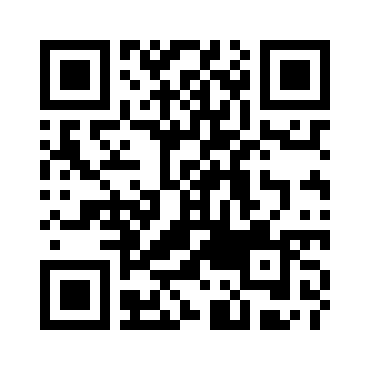 Download QR code
Open this page on another screen and scan it with iTAK's server QR scanner. On the same phone, use the manual details below.
Your account. Your device.
- Open iTAK and go to its server connection settings. Choose the option to add a server using a QR code.
- Scan the code, then select certificate enrollment if prompted.
- Enter your own SCTAK username and password. Complete enrollment and enable the server connection.
Button names may vary by iTAK version. Use iTAK's scanner, rather than the iPhone Camera app.
Create an SCTAK accountManual connection
- Name
- SCTAK
- Server
tak.sctak.org- Port / protocol
- 8089 / SSL
- Certificate enrollment port
- 8446
Use your TAK username, not your callsign. If enrollment fails, keep the error message and check the hostname above. Do not turn off certificate verification.
Already using Android? Download your ATAK setup from My Account.